
How to Use Custom Colors Calendar
Installation Instructions
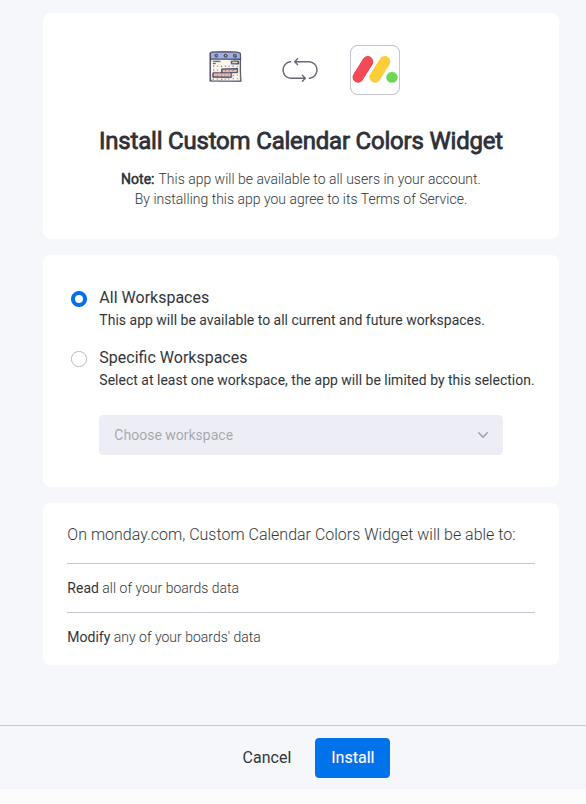
To install the Custom Colors Calendar app, follow these steps:
- Follow the installation link or search for the app in the marketplace.
- Install the app.

Prerequisites
- A valid monday.com account.
- Basic understanding of how to navigate and use monday.com.
- Ensure your browser is up to date for the best experience.
Please ensure you meet these prerequisites before proceeding with the installation of the Custom Colors Calendar app.
First Time Use Instructions
To get started with the Custom Colors Calendar app, follow these steps:
- Install the app from the monday.com marketplace.
- Start with an empty dashboard.
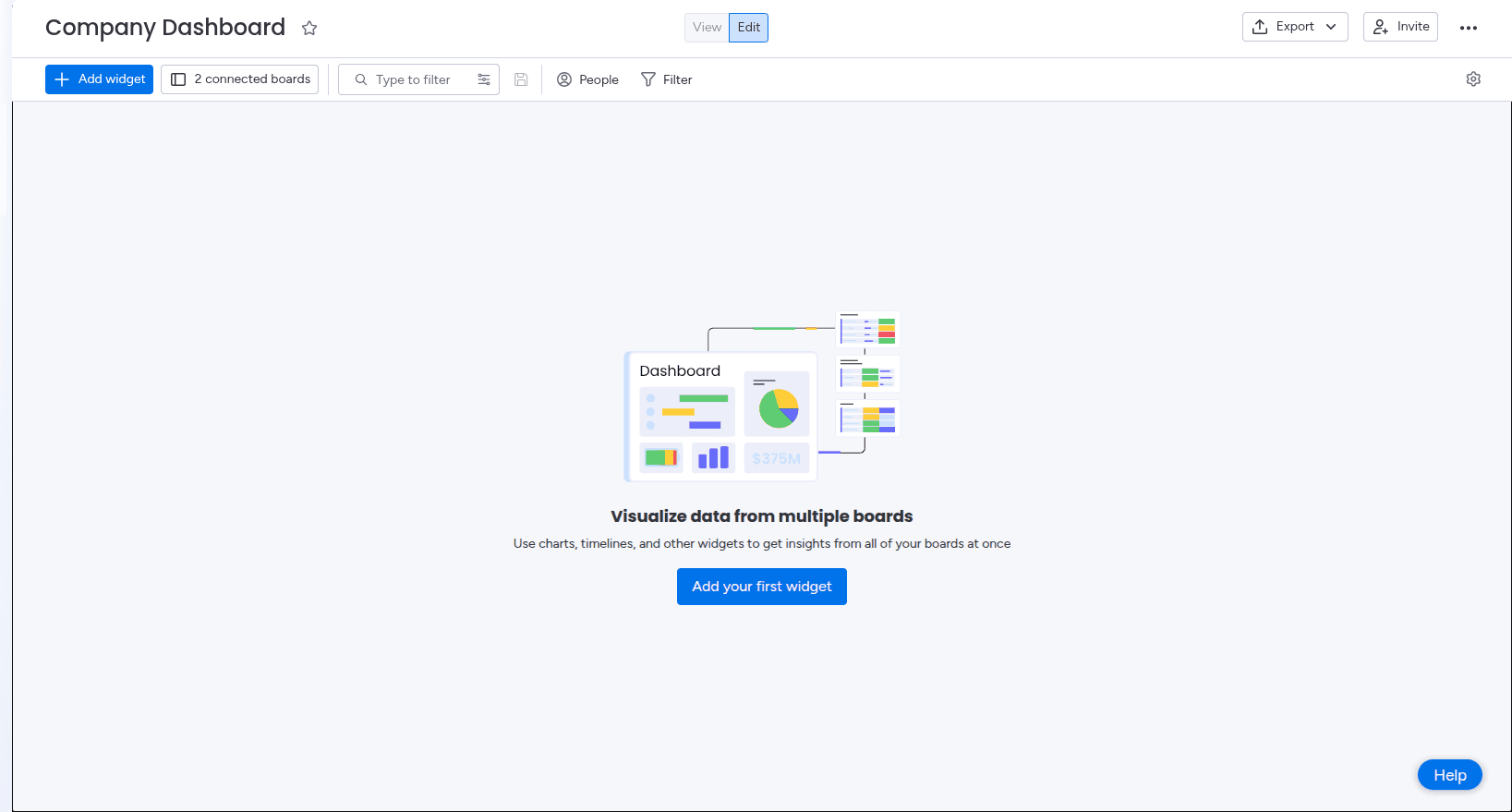
Obviously you can also add the widget to an existing dashboard with other widgets. - Add the Custom Colors Calendar widget to your dashboard.
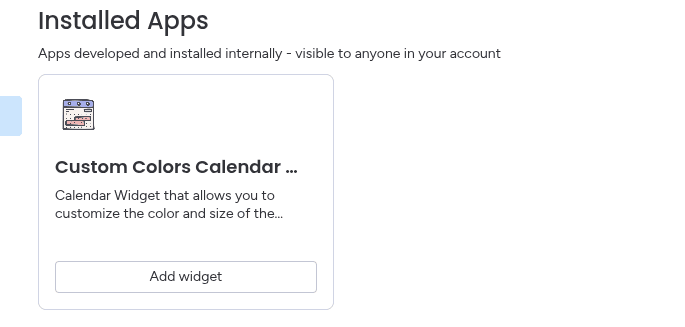
Note: You may need to scroll down to find the widget in the list. - Change event text color to highlight important items.
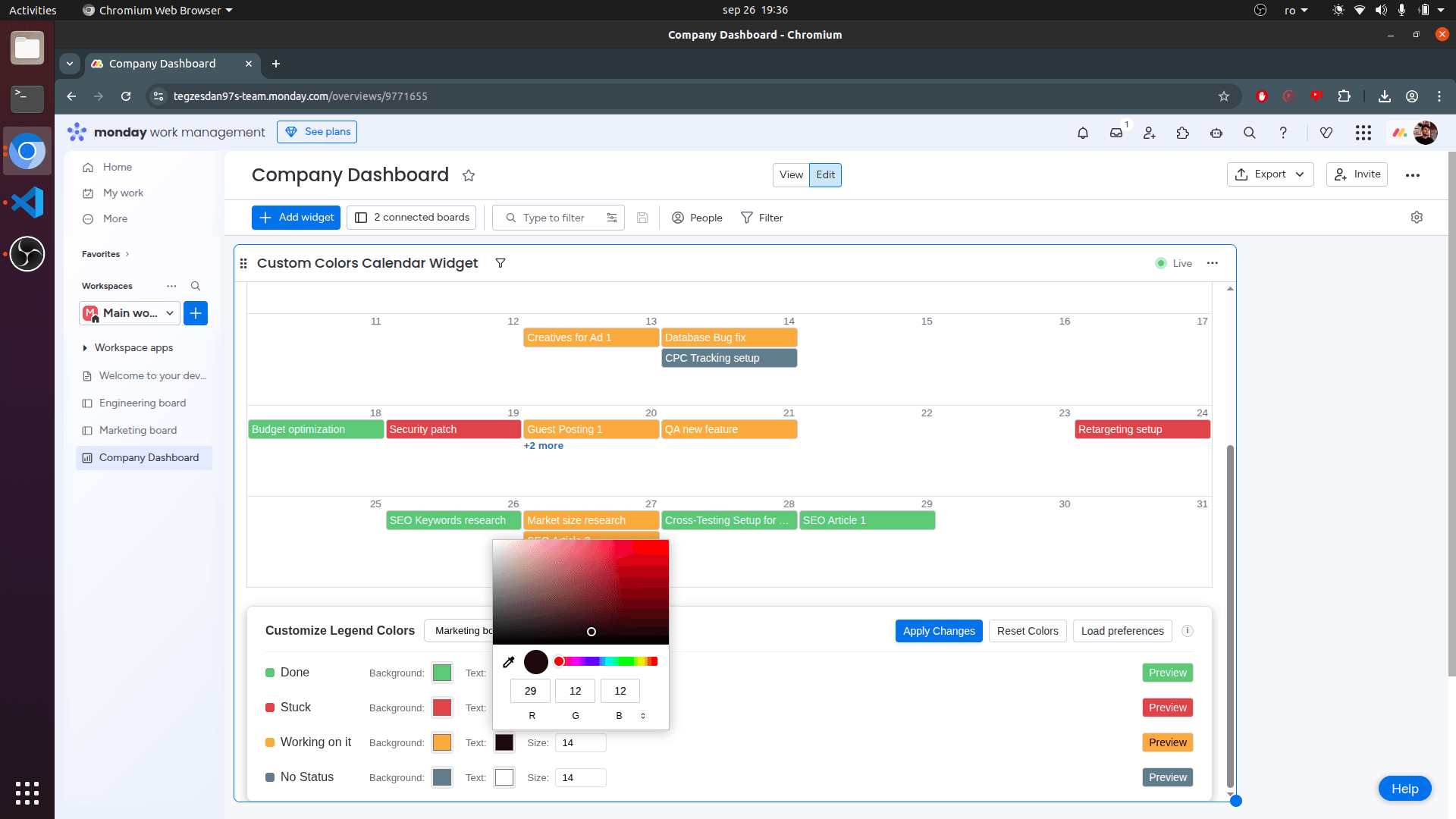
You can change colors by clicking on the color swatch next to the text field. A color picker will appear allowing you to select a new color. You can change the color of the event's background and the event's text. - Adjust event text size for better readability.
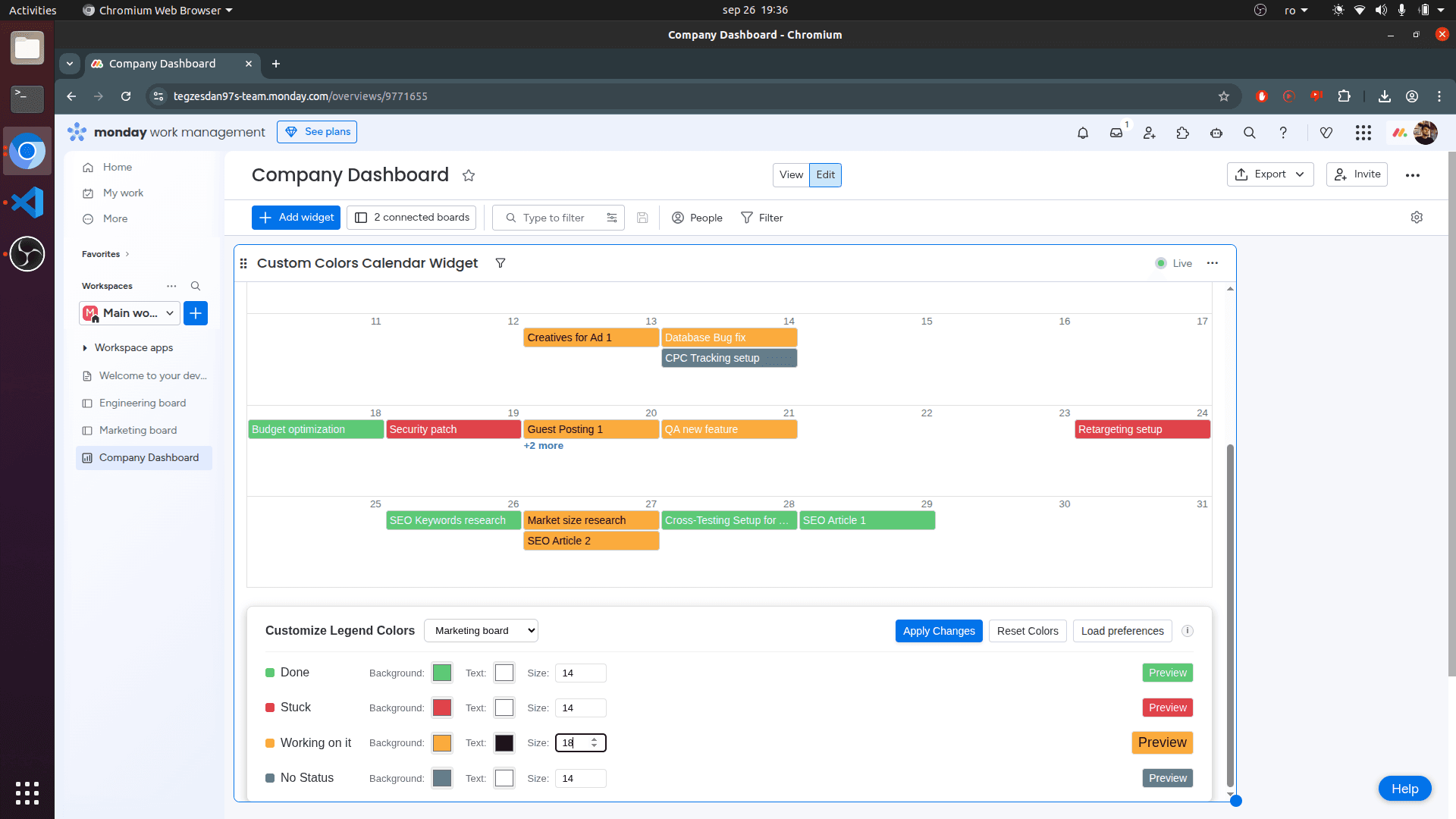
To see the changes, click on the "Apply Changes" button. - Final calendar with custom colors and sizes applied.
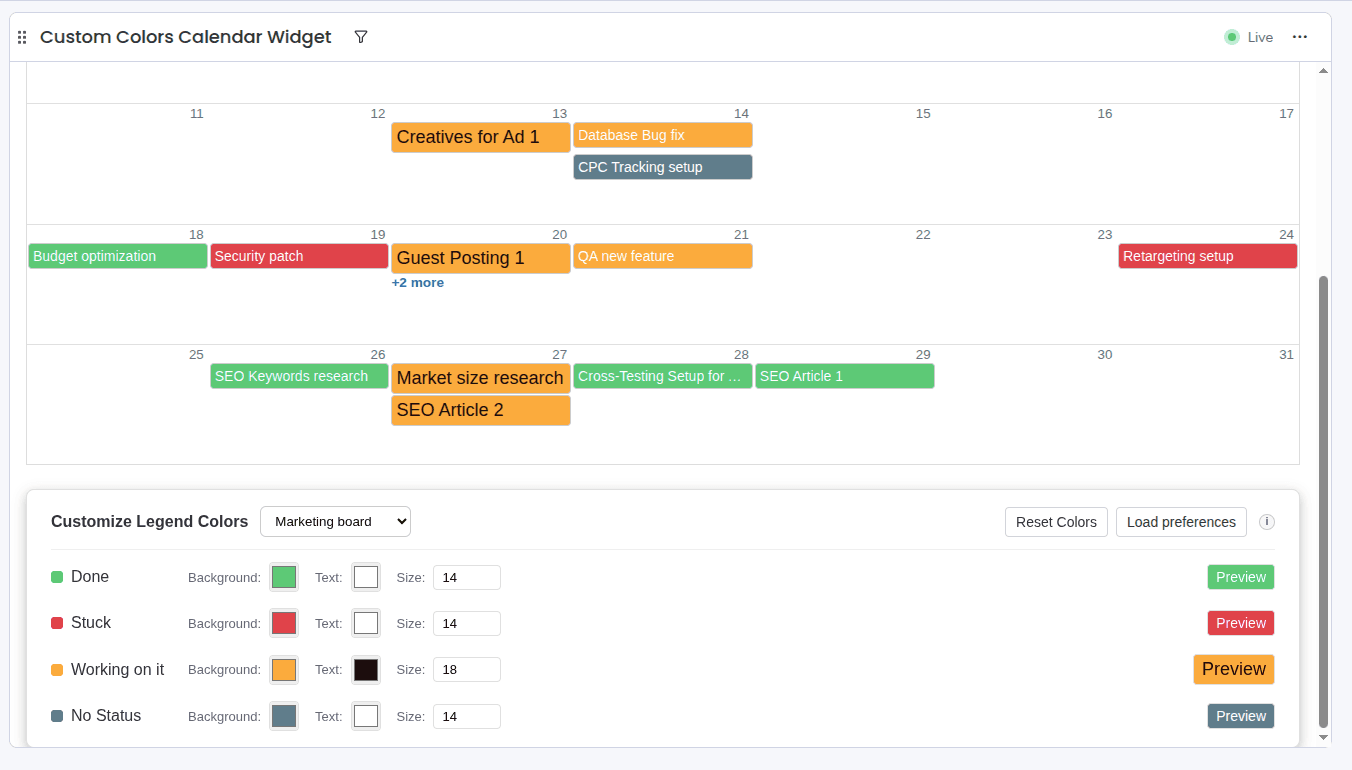
Note: You can reset the colors to the default ones by clicking on "Reset". This will reset both text and background colors to their default values. You can load again your saved colors by clicking on "Load Preferences". Each user can have their own preferences saved. The preferences are by board. If you change the board, you will see the default colors again (or the changes made to the colors of that board).
If you encounter any issues, please refer to the support section for assistance.
Support Media
Here are some helpful resources to get you started with the Custom Colors Calendar app: