How to Use Asana Integration Plus
Installation Instructions
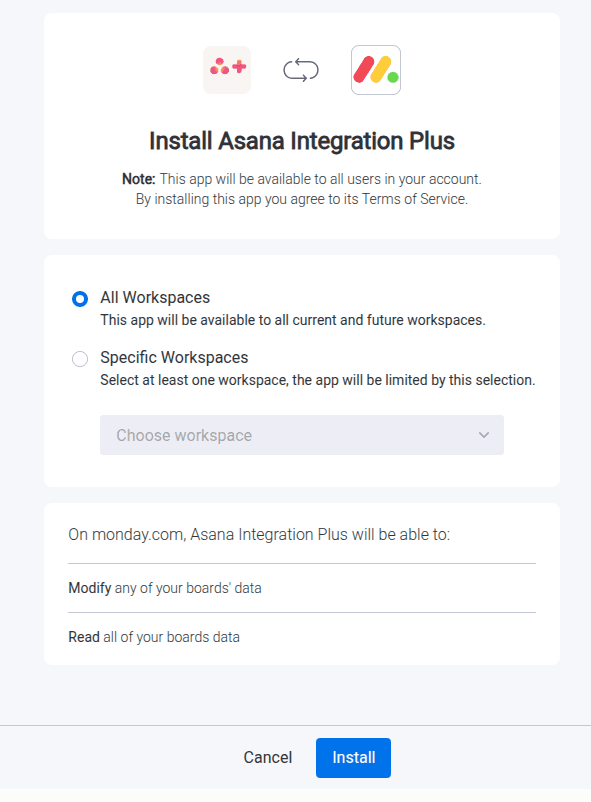
To install the Asana Integration app, follow these steps:
- Follow the installation link or search for the app in the marketplace.
- Install the app.

Prerequisites
- A valid monday.com account.
- Basic understanding of how to navigate and use monday.com.
- A valid Asana account.
Please ensure you meet these prerequisites before proceeding with the installation of the Asana Integration app.
First Time Use Instructions
To get started with the Asana Integration Plus app, follow these steps:
- Install the app from the monday.com marketplace.
- Start new workflow and add Asana Integration Plus trigger. You can find the trigger by searching for it in the triggers section.
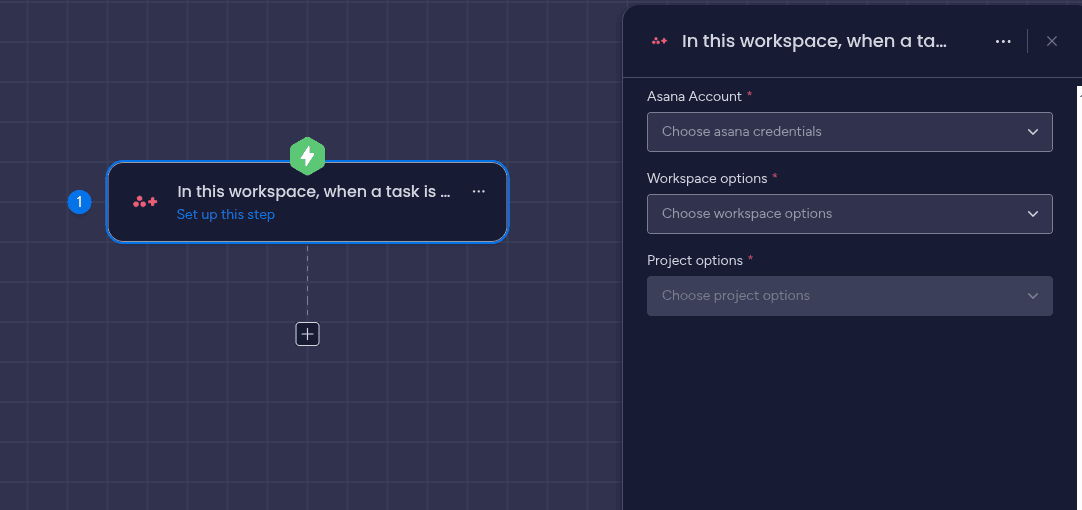
- Configure the trigger with your account, workspace and project. You will be asked to authorize the app and connect your Asana account if you haven t done it already.
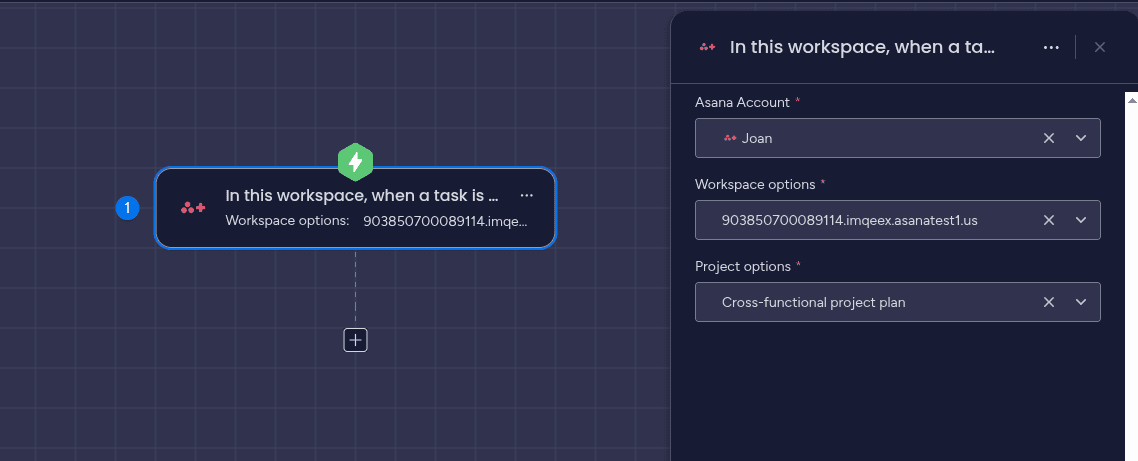
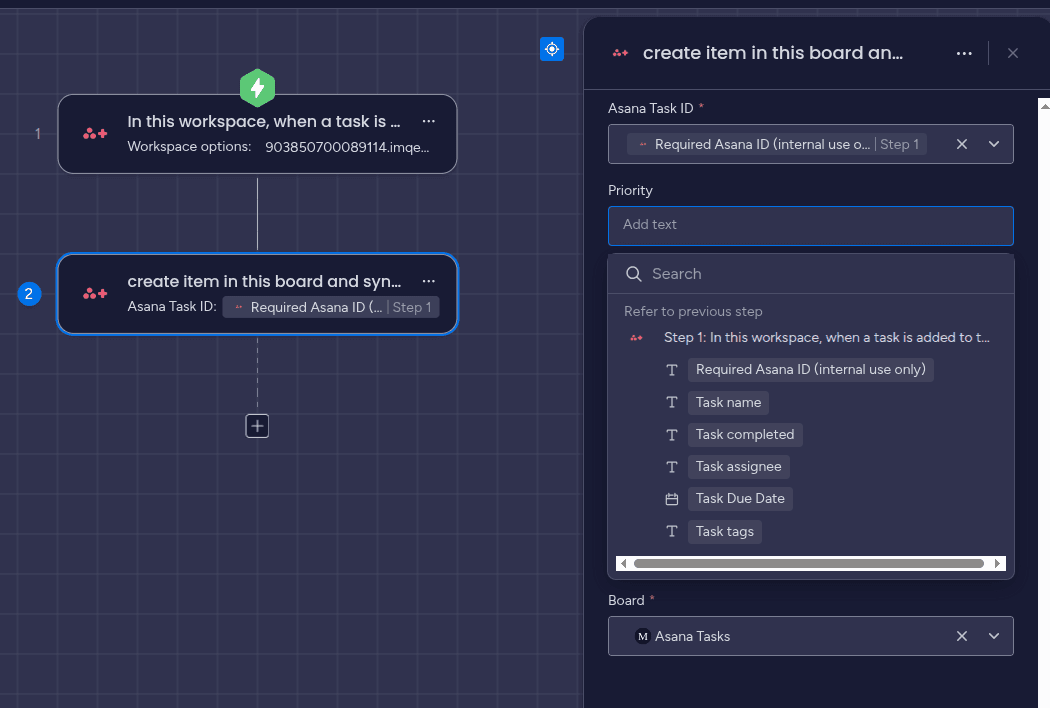
- After you configured the trigger, you can add the action to your workflow. You can find the action by searching for it in the actions section. Once you add the action, you will have to choose a board and also choose the Asana Task ID from the trigger.
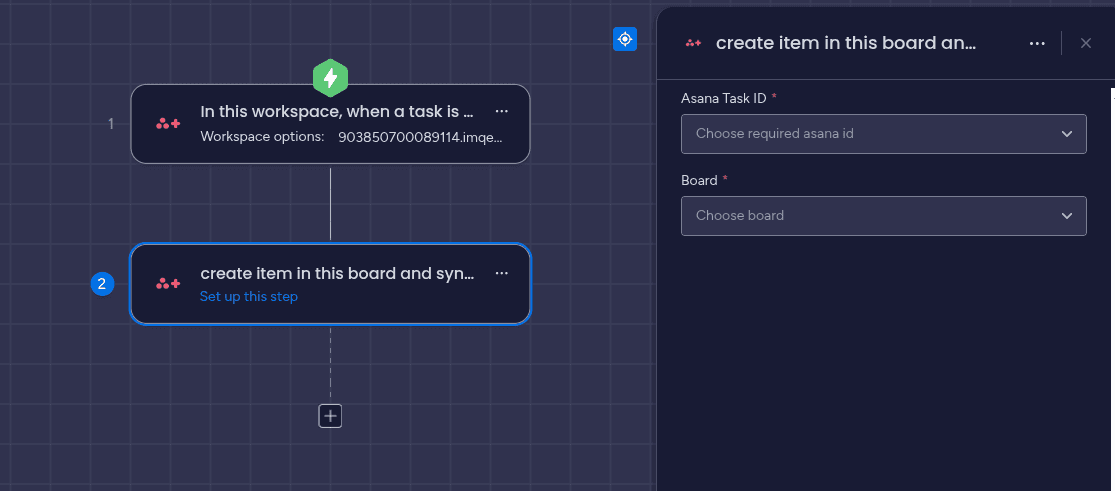
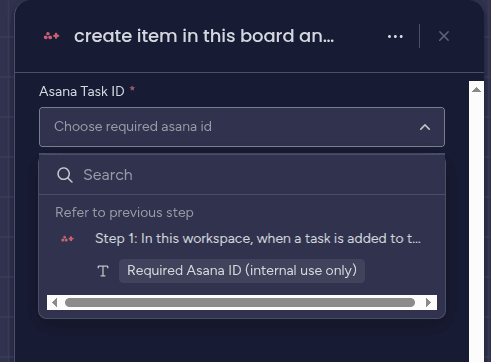
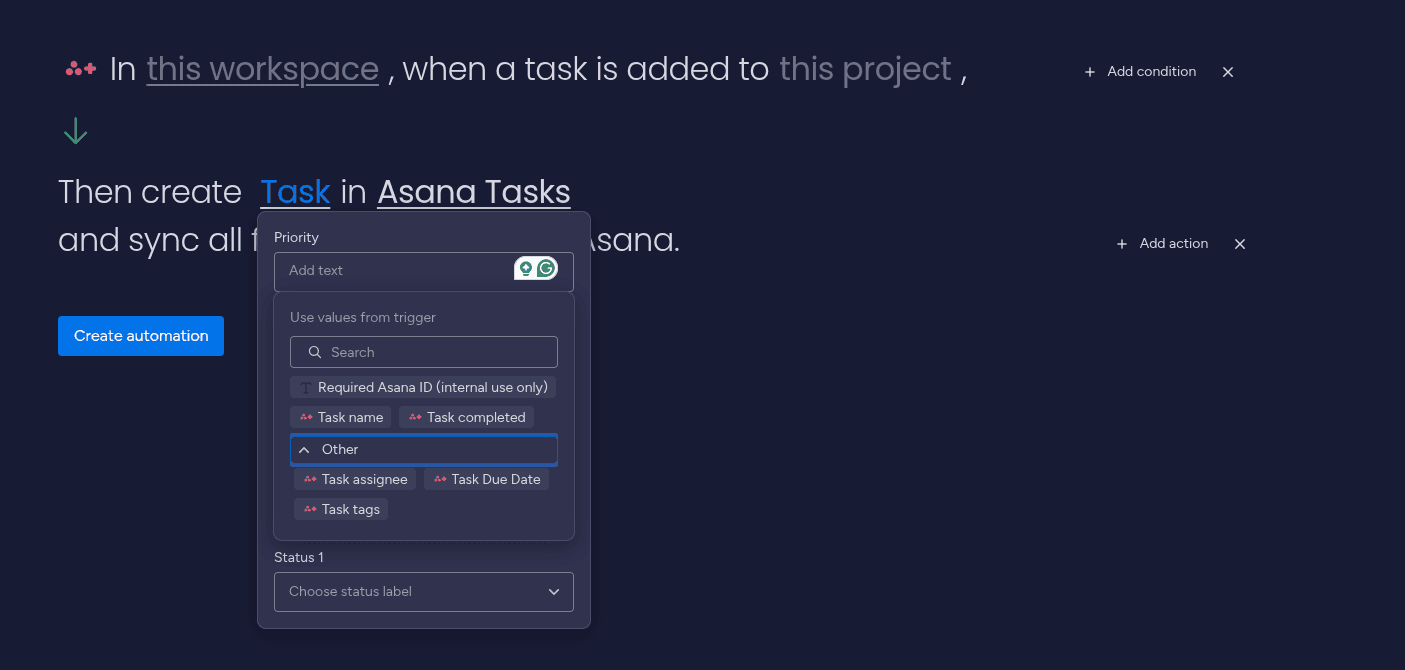
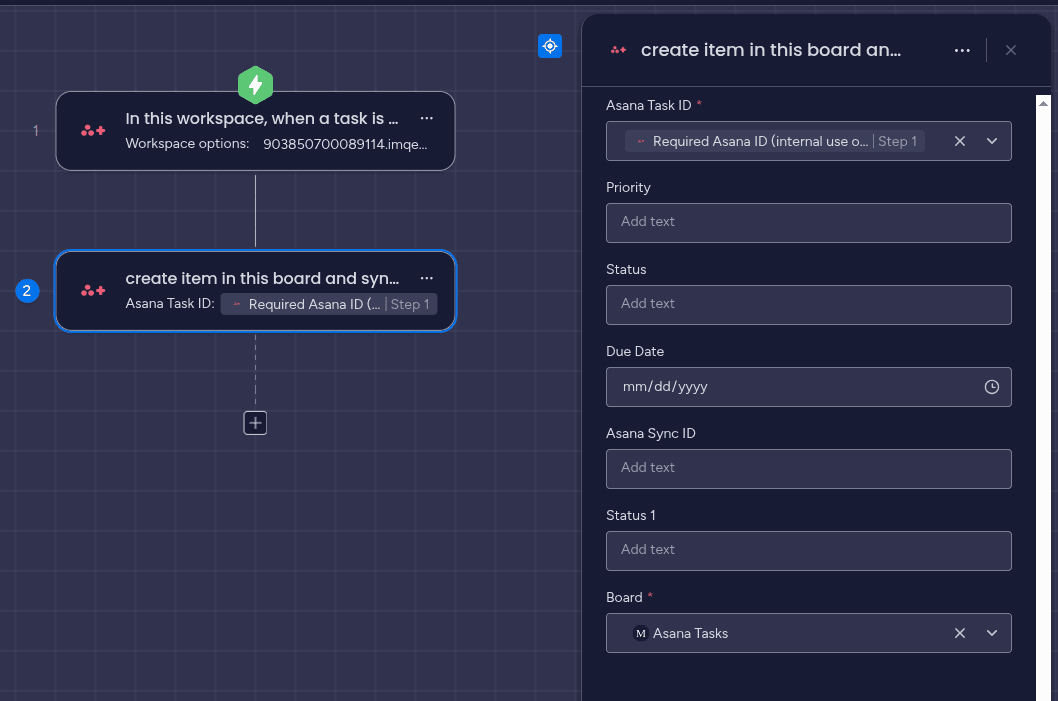
- After you choose the board, you can map the columns with the Asana specific fields. The values from these fields will be used when creating your items.
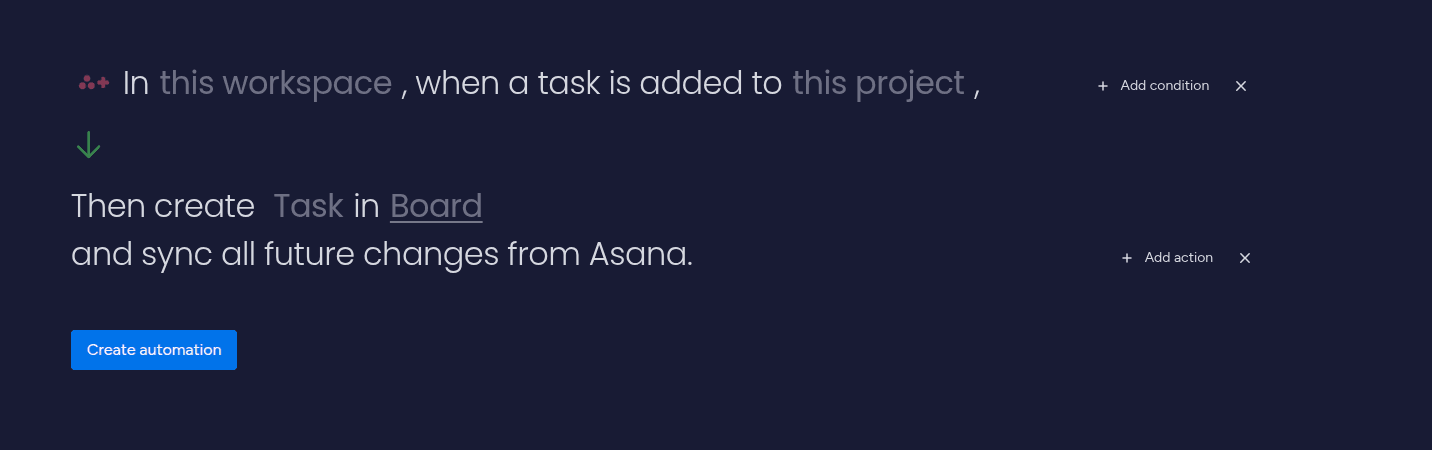
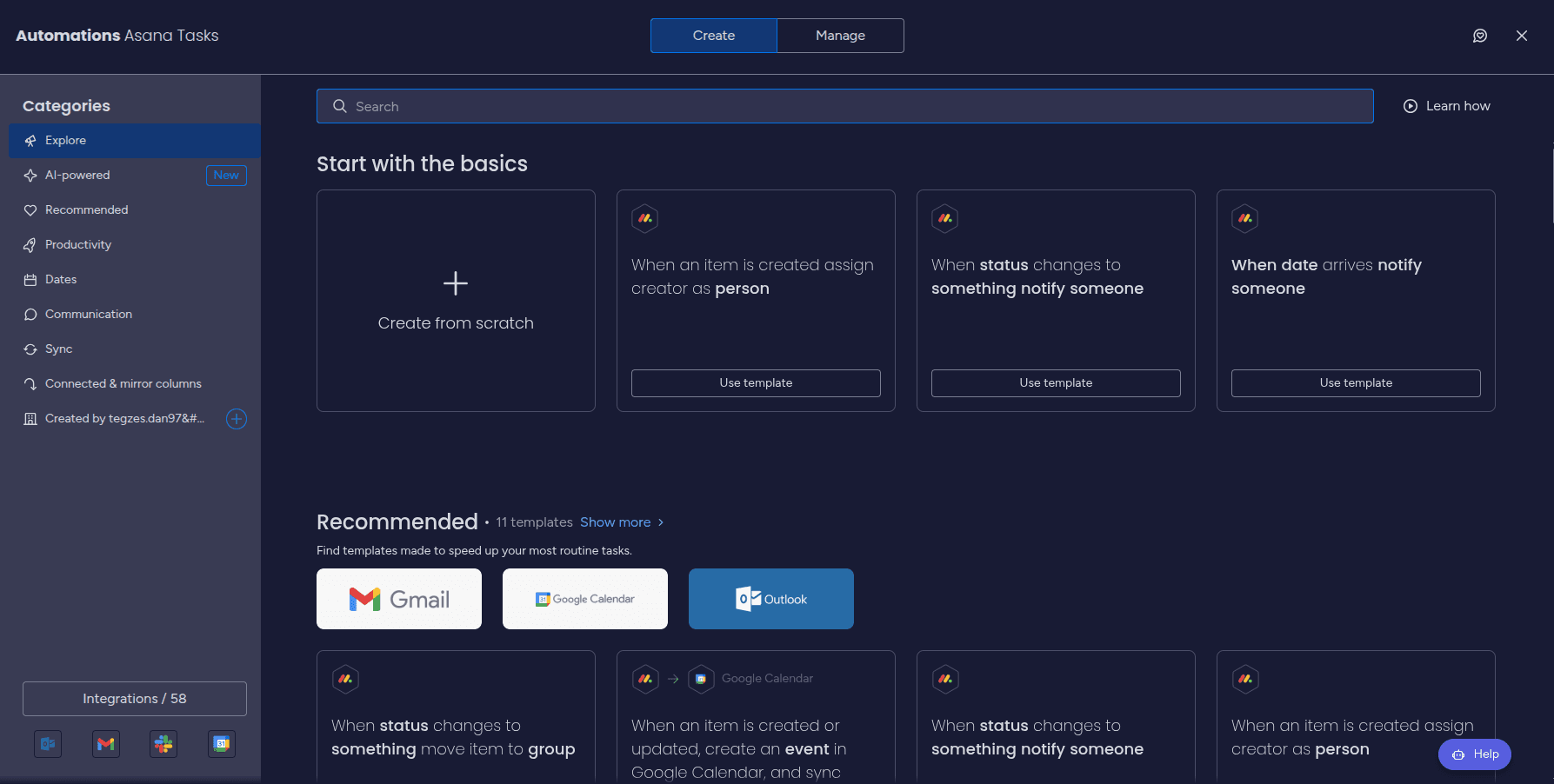
- Adding the Asana Integration Plus in your automations. First step is to navigate to the Automations section in a board, and choose to create a new automation from scratch. Then, you can choose the Asana Integration Plus trigger and action to add it to your automation.
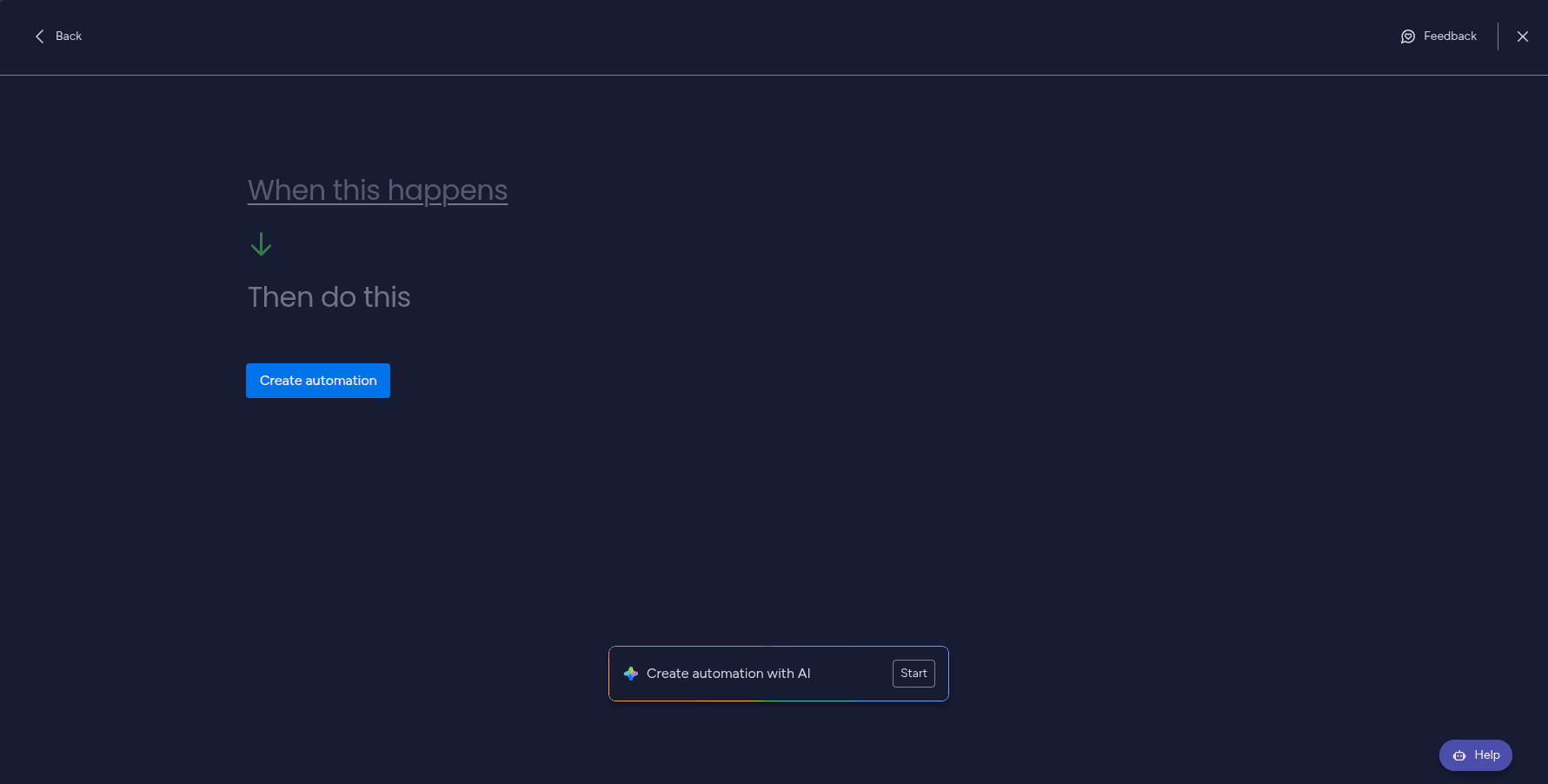
Now add the trigger and action from Asana Integration Plus to your automation, and configure them as explained in the previous steps. Choose the Asana account, workspace and project. Then configure the action by choosing the board where you want to create items, and mapping the fields with the values from the trigger. After you finish configuring the automation, click "Create automation".